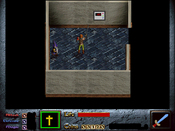
Intro Graphics
August 22nd 2009, 01:26 AM

MsDink


Almost finished my mapping but wanted to add some new/changed graphics...can someone pls give me specific instructions on how to put the new graphics into my dmod (a tad technologically challenged here...)I am not sure how to save so transparency is kept (only ever used .gif files for transparency not bitmaps). I use paint shop pro for images. Then where do I save the new ones I made so I can use them as sprites... also how do I access the Dink original sprites and make changes to them? Last question is I also would like to know if anyone has any really simple scripting information - I see ppl speak of Dinkc - where would I get a copy of that or anything that explains in simple terms how to do this. Just need some starting tips to what things mean... then I can play and learn.
Thanks heaps to anyone that has the time and inclination to help a real noooooooooooob :0) who is dying to get a dmod finished
Thanks heaps to anyone that has the time and inclination to help a real noooooooooooob :0) who is dying to get a dmod finished


to modify those sprites you need to download the bmp versions from the dev file section.


Hi, and welcome to the forum.
If you want some info on scripting I can recommend either The rudiments of scripting or my own tutorial an introduction to DMOD making, which includes a section on scripting.
Now about the graphics. In Dink everything that is completely white becomes transparent in the game. This means you have to be careful to see if the edges of your sprite are correct. Also watch out if you're creating very white objects like snow. Dink normally only reads 8 bit bmps, but with true color mode enabled it will also read 32 bit bmps.
The tutorial I wrote a while ago has a very limited description of how to insert graphics into Dink, let me copy it here:
"Dink uses 8 bit bmp files for graphics. So you have to make sure your graphics are as well. This can be easily done by taking a file which is in the dink palette (say the start/load buttons of your DMOD) and copying it. Now open the copied file in MS paint and paste your own graphic into MS paint, MS paint will make sure the graphic will be in the correct Dink palette. You can work around this problem with the Dink palette by using true color mode in your DMOD. This does require that the entire DMOD is played in true color though…
See simple graphics for an excellent explaination of this process (http://www.dinknetwork.com/file/simple_graphics ). Simple graphics is a bit old, but it still contains valuable information.
Next, save your file in the ‘GRAPHICS’ folder in your DMOD (you can use subdirectories if you want). Give your file a name in this form: XXXX-01 in which XXXX is any name you like (keep within 8 characters). The 01 is the frame number, so if you want to add multiple frames to a sequence your next graphic should be called XXXX-02. You can use up to 50 frames per sequence.
Now you need to tell Dink that it looks for the graphic you just made. You do this by editing dink.ini in the main folder of your DMOD. Add this line to add your first graphic to Dink:
load_sequence_now graphics\XXXX- <number> NOTANIM
For the <number> value you can use any unused sequence number. If you use skeleton B safe numbers to use include 34-40, 98-99,198-200 and 850-999. There is a list for download at the Dinknetwork which lists all available numbers: (See http://www.dinknetwork.com/file/list_of_available_sequences_for_dink_ini )
Now instead of writing NOTANIM you could also write a set of numbers or other information there. This is how you can edit the hardbox of your sprite. If you're interested in which numbers should go there I recommend the Dink ini index (http://www.dinknetwork.com/file/dink_ini_index ). You can use DinkEdit or WinDinkEdit to edit the hardbox of an individual frame. This creates a set_sprite_info line in the dink.ini, copy all the information neccessary from that and place it
instead of NOTANIM. (Check the dink ini index to see what exactly you need to copy.)"
If you want some info on scripting I can recommend either The rudiments of scripting or my own tutorial an introduction to DMOD making, which includes a section on scripting.
Now about the graphics. In Dink everything that is completely white becomes transparent in the game. This means you have to be careful to see if the edges of your sprite are correct. Also watch out if you're creating very white objects like snow. Dink normally only reads 8 bit bmps, but with true color mode enabled it will also read 32 bit bmps.
The tutorial I wrote a while ago has a very limited description of how to insert graphics into Dink, let me copy it here:
"Dink uses 8 bit bmp files for graphics. So you have to make sure your graphics are as well. This can be easily done by taking a file which is in the dink palette (say the start/load buttons of your DMOD) and copying it. Now open the copied file in MS paint and paste your own graphic into MS paint, MS paint will make sure the graphic will be in the correct Dink palette. You can work around this problem with the Dink palette by using true color mode in your DMOD. This does require that the entire DMOD is played in true color though…
See simple graphics for an excellent explaination of this process (http://www.dinknetwork.com/file/simple_graphics ). Simple graphics is a bit old, but it still contains valuable information.
Next, save your file in the ‘GRAPHICS’ folder in your DMOD (you can use subdirectories if you want). Give your file a name in this form: XXXX-01 in which XXXX is any name you like (keep within 8 characters). The 01 is the frame number, so if you want to add multiple frames to a sequence your next graphic should be called XXXX-02. You can use up to 50 frames per sequence.
Now you need to tell Dink that it looks for the graphic you just made. You do this by editing dink.ini in the main folder of your DMOD. Add this line to add your first graphic to Dink:
load_sequence_now graphics\XXXX- <number> NOTANIM
For the <number> value you can use any unused sequence number. If you use skeleton B safe numbers to use include 34-40, 98-99,198-200 and 850-999. There is a list for download at the Dinknetwork which lists all available numbers: (See http://www.dinknetwork.com/file/list_of_available_sequences_for_dink_ini )
Now instead of writing NOTANIM you could also write a set of numbers or other information there. This is how you can edit the hardbox of your sprite. If you're interested in which numbers should go there I recommend the Dink ini index (http://www.dinknetwork.com/file/dink_ini_index ). You can use DinkEdit or WinDinkEdit to edit the hardbox of an individual frame. This creates a set_sprite_info line in the dink.ini, copy all the information neccessary from that and place it
instead of NOTANIM. (Check the dink ini index to see what exactly you need to copy.)"
August 22nd 2009, 05:49 AM
Ms DinkAlot
Wow thanks = that was actually easy to understand - thanks also for the welcome Metatarasal. Just wondering what NOTANIM and hardbox means towards the end of your explanation? Is that the hardness of the sprite and notamim means it stands still like a tree or sommink? And do I have do do something with that?
I also changed a script (wow all by myself!) added to the old man sprite and he says what I want him to (interacts nicely with Dink) but just stands there and no matter what I do the old B$%^ wont move/walk around as well as stop and chat when Dink talks to him... what am I missing?? Do u need something in the script to make him move as well as talk?? Confused cause i pasted someone else's person (minus the script it used yet the reference is still in the sprites properties) and he moves AND says things from the script that isn't even in my dir ... cant see how he does that yet my old fella seems to have altzheimers when it comes to walking.
I also changed a script (wow all by myself!) added to the old man sprite and he says what I want him to (interacts nicely with Dink) but just stands there and no matter what I do the old B$%^ wont move/walk around as well as stop and chat when Dink talks to him... what am I missing?? Do u need something in the script to make him move as well as talk?? Confused cause i pasted someone else's person (minus the script it used yet the reference is still in the sprites properties) and he moves AND says things from the script that isn't even in my dir ... cant see how he does that yet my old fella seems to have altzheimers when it comes to walking.
NOTANIM pretty much means you don't like to give any additional information. It's the lazy man's way of adding sprites. Useful, for objects that are standing still and are not supposed to be hard.
The hardbox refers to the size of the hardness of the sprite. So I kinda took a shortcut in my explaination. The last chapter (called 'Depth Dots, Hardboxes, and Graphics') of the DinkC reference has good additional information. The DinkC reference is located in the 'develop' folder in dink 1.08. Try reading that, if it's not clear then you can ask again.
About making a sprite walk:
You can change all of that in a script, but it's easier to change it directly in the editor. In essence you need three things:
1 - A brain (So the sprite gets a 'behavior')
2 - A speed (So the sprite can actually move)
3 - A basewalk (So the sprite doesn't always face the same way)
If you're using WinDinkEdit you can find these things by right clicking on the sprite, clicking 'properties' and then entering the correct values. You probably want to give the old man a speed of 1 and a brain of 16. The basewalk is dependent on which sprite you're using. In general the basewalk value can be found by taking the sequence number of the sprite and replacing the last digit with a zero. (Old man is probably 230)
If you really want to know the mechanisms behind this you can read Chapter 7.2 in the tutorial I wrote.
The hardbox refers to the size of the hardness of the sprite. So I kinda took a shortcut in my explaination. The last chapter (called 'Depth Dots, Hardboxes, and Graphics') of the DinkC reference has good additional information. The DinkC reference is located in the 'develop' folder in dink 1.08. Try reading that, if it's not clear then you can ask again.
About making a sprite walk:
You can change all of that in a script, but it's easier to change it directly in the editor. In essence you need three things:
1 - A brain (So the sprite gets a 'behavior')
2 - A speed (So the sprite can actually move)
3 - A basewalk (So the sprite doesn't always face the same way)
If you're using WinDinkEdit you can find these things by right clicking on the sprite, clicking 'properties' and then entering the correct values. You probably want to give the old man a speed of 1 and a brain of 16. The basewalk is dependent on which sprite you're using. In general the basewalk value can be found by taking the sequence number of the sprite and replacing the last digit with a zero. (Old man is probably 230)
If you really want to know the mechanisms behind this you can read Chapter 7.2 in the tutorial I wrote.
August 22nd 2009, 07:10 AM
Ms Dink Alot
HAhahaha that makes the old fella slide sideways then backwards *snorts and giggles* oh that's so funny (and he lost his speech as well) ahhhhh well... I do see your point tho and thanks for letting me know I already had the dink reference, was kinda scared to play with things I don't understand but I suppose thats why you make a back up. Got windinkedit+ now and things are Soooo much easier to do in that... Will go have a more informed play with stuff - thanks heaps for taking the time to answer.
i always use brain 9.
it works fine for any person sprite.
it works fine for any person sprite.
Except that it works just a tad less well than brain 16. Unless you're making a hyperactive person that is.
to be honest i completly forgot there were brains higher than 10 lol.
August 22nd 2009, 08:19 PM
Ms DinkAlot
Hey the brain 9 works pretty well - although he keeps going whilst dink chats hehe. After I do all this I need to figure out how to make intros... yay progress )
Man tis nice here today sun at last!!
)Man tis nice here today sun at last!!
can someone explain the freeze and unfreeze funtions? im using a psp so its hard to type long paragraphs.


you can use freeze(1); command to stop dink from moving and freeze(¤t_sprite); to stop the sprite the script is attached to from moving. to allow them to move again, you would use unfreeze(1); and unfreeze(¤t_sprite);
the script would look something like this.
void talk(void)
{
freeze(1);
freeze(¤t_sprite);
say_stop("Hello", 1);
say_stop("Hello Dink.", ¤t_sprite);
unfreeze(1);
unfreeze(¤t_sprite);
}
If you dont understand parts of this, i can explain it better, or someone else can
the script would look something like this.
void talk(void)
{
freeze(1);
freeze(¤t_sprite);
say_stop("Hello", 1);
say_stop("Hello Dink.", ¤t_sprite);
unfreeze(1);
unfreeze(¤t_sprite);
}
If you dont understand parts of this, i can explain it better, or someone else can
August 23rd 2009, 07:15 AM
MsDink
This is what I am using - has the freeze unfreeze I thought?
void talk(void);
{
freeze(1);
say_stop("`%Bla bla bla", ¤t_sprite);
say_stop("more bla bla ", 1);
unfreeze(1);
}
void talk(void);
{
freeze(1);
say_stop("`%Bla bla bla", ¤t_sprite);
say_stop("more bla bla ", 1);
unfreeze(1);
}


That's fine but you're only freezing Dink, you also need to freeze/unfreeze ¤t_sprite!
yes you need to add freeze(¤t_sprite); and unfreeze(¤t_sprite); to freeze the sprite dink is talking to