[Tutorial]Easy image convert into 256 colors.


Everyone hade a problem with converting sprites of images into a 256 color cause of poor palletes using in Dink and the outcome of blurrs is really bad in 32 bits.But now there is a way to change it!
You need:
-RAD Video Tools
Tutorial:
1.Open RAD Video Tools and select an image.
2.Click on Covert File... and press Yes...
3.Browse the output and in output file change into BMP File
4.Select Output as 256 colors and leave the setting(If you want you can change some) and press Batch...
5.Pres Start and wait...
That's all...
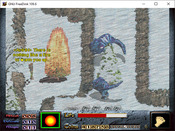
Outcome
You need:
-RAD Video Tools
Tutorial:
1.Open RAD Video Tools and select an image.
2.Click on Covert File... and press Yes...
3.Browse the output and in output file change into BMP File
4.Select Output as 256 colors and leave the setting(If you want you can change some) and press Batch...
5.Pres Start and wait...
That's all...
Outcome


How do you manage to directly convert into the Dink palette? Just lowering the colour settings won't make it use the Dink palette just like that.
You can do the same with Irfanview, and any decent tool. What's important is that it converts the image into the Dink palette.
You can do the same with Irfanview, and any decent tool. What's important is that it converts the image into the Dink palette.


In the old days, I'd say because of the reduced file size. I know when I was messing with sprites in Dink after the update, I still used to reduce them to the original palette if they fit them well enough. Now, I'd say it has more to do with performance. True-color mode can be a bit slow on older computers and I prefer to stick 256 when I can.


This is what I came up with when I used the GIMP to change your image into the Dink palette.
Not sure it's right though, as the blue bar in the middle has changed as well...
Not sure it's right though, as the blue bar in the middle has changed as well...